MetaRinse guide
Blur, pixelate, or cover: how to hide details in a photo
Blur and pixelation can reduce legibility, while an opaque solid cover replaces the selected pixels. Choose the method according to what must remain hidden.
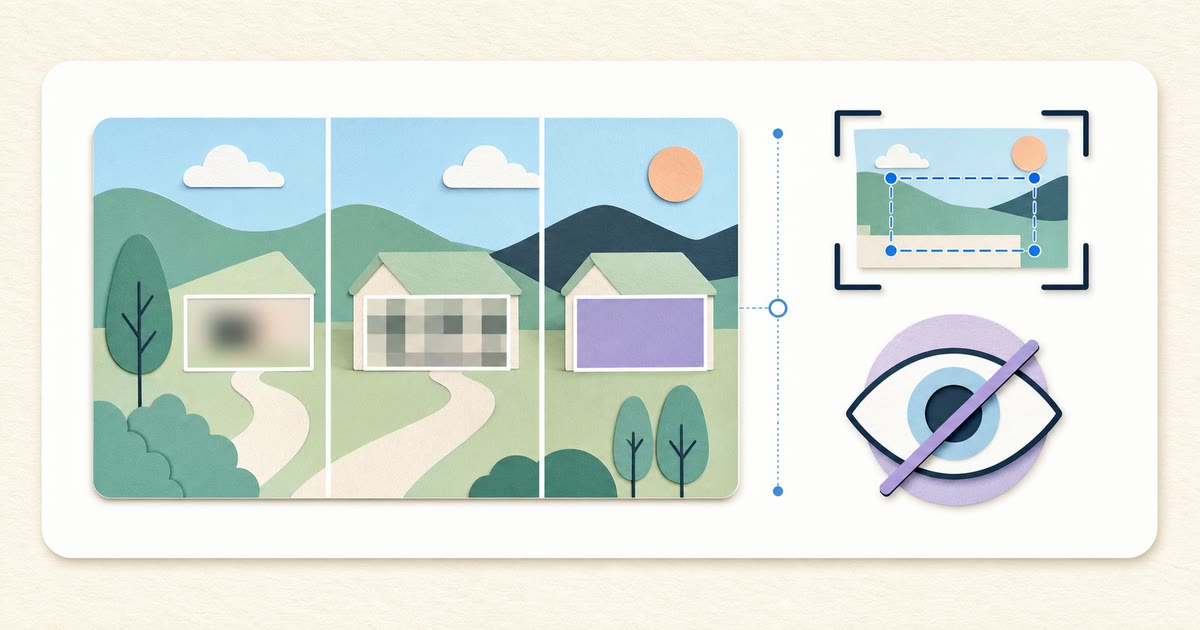
The safest default for sensitive visible information
Use an opaque solid cover when text, an account number, an address, a face, or another selected detail must not remain visible in the exported image. MetaRinse paints the selected rectangle into a newly encoded flat image rather than preserving an editable layer.
Blur and pixelation are useful visual effects, but they should not be treated as guaranteed irreversible redaction. The UK Information Commissioner’s Office warns that simple blur or pixelation can sometimes be reversed and recommends fully obscuring the area with a solid block when securely redacting an image.
How the three modes differ
| Mode | What it does | Suitable use | Important limit |
|---|---|---|---|
| Solid cover | Replaces the selected rectangle with a fully opaque color | Passwords, addresses, identifiers, or other details that must not remain visible | Only the selected rectangle is covered; check its edges and every other occurrence |
| Pixelate | Resamples the selected area into larger color blocks; strength is adjustable from 1 to 10 | De-emphasizing a recognizable detail when the remaining visual context is acceptable | Not a guarantee against reconstruction or recognition |
| Blur | Spreads nearby pixel colors across the selected area | Soft visual concealment where irreversible removal is not required | Shapes, contrast, or text structure may remain recognizable |
Recorded overlap and output check
This automated browser test deliberately places a solid cover and maximum-strength pixelation over the same area. It then downloads the PNG, decodes it again, checks the center pixel, and re-inspects supported metadata.
| Test image | Operation | Recorded output | Verification |
|---|---|---|---|
| PNG · 24 × 18 · 1,036 bytes | Overlapping solid cover #C91F37 and pixelation level 10 | PNG · 24 × 18 · 301 bytes | Center pixel RGBA 201, 31, 55, 255; 0 supported private or descriptive fields detected |
Recorded 2026-07-27 in Playwright 1.61.1 · Chromium 149.0.7827.55 · Windows 11 10.0.26200.
The exact center-pixel check confirms that the opaque cover remains on top when it overlaps a resampling effect.
It does not prove that every sensitive detail elsewhere in an image was selected or hidden. The visitor must inspect the entire downloaded image.
Redact a photo step by step
- Work on a copy and keep the original in a separate, protected location.
- Select the image and draw a rectangle that extends beyond every edge of the sensitive detail.
- Choose a solid cover for information that must not remain visible. Select a color with enough contrast to see the covered area clearly.
- Add separate regions for repeated names, reflections, thumbnails, screens, badges, or background documents.
- Review the preview at 100% and zoom in around each edge before creating the file.
- Download the newly encoded file, reopen it in a separate viewer, and inspect the whole image—not only the edited rectangles.
What image redaction does not remove by itself
MetaRinse re-encodes the selected result and checks supported private or descriptive metadata before offering the download. That check complements visible redaction; it does not replace a full visual review or prove forensic anonymity.
- A sensitive filename, cloud-sharing permission, or copy stored elsewhere.
- Details outside the selected rectangles, including reflections and small background text.
- Context that lets someone infer a location or identity even after one object is covered.
- Records held by a camera, messaging app, social platform, backup service, or recipient.
Sources
Related guides
Your image never leaves your device.