MetaRinse guide
How to compress an image to a target file size
A maximum file size is a limit, not an exact destination. See how quality, resolution, format, and image content affect the result.
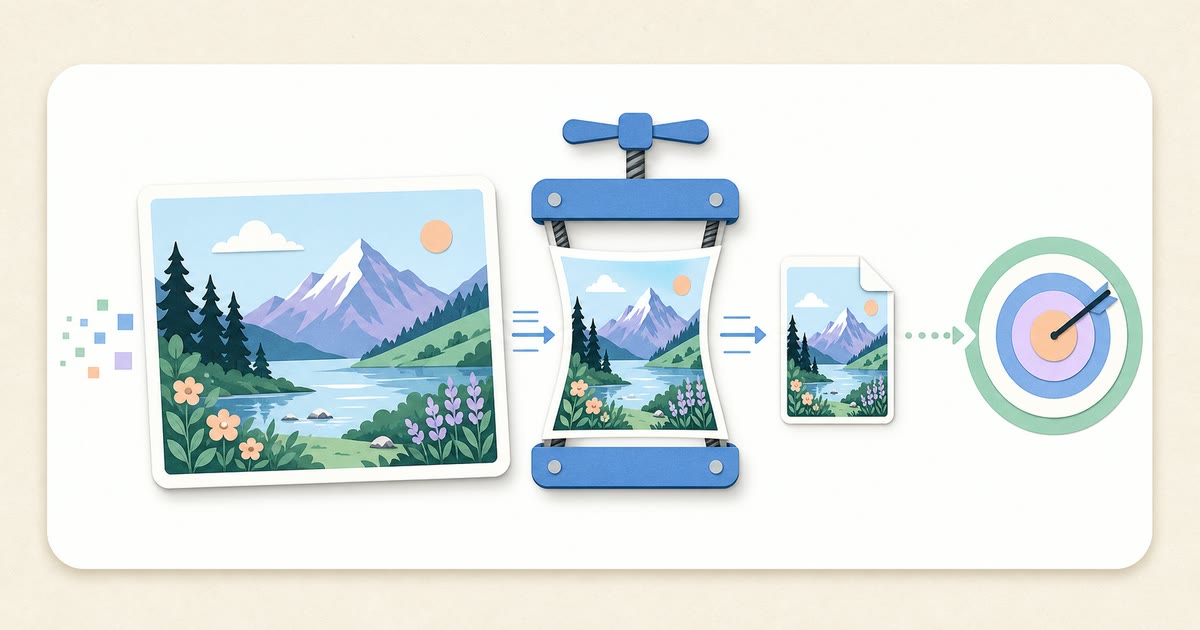
The direct answer
To compress an image to 100 KB, 200 KB, 500 KB, or another limit, choose a maximum size and let the encoder search for an output at or below that limit. The result may be smaller than the number you chose because image encoders do not offer every possible byte size.
JPEG and supported WebP outputs can usually be made smaller by reducing encoding quality. MetaRinse keeps the original pixel dimensions unless you explicitly allow resolution reduction. PNG does not use the same adjustable lossy-quality control, so a large PNG may need fewer pixels or a different format to reach a much smaller target.
What MetaRinse actually changes
- Format: keeping JPEG, PNG, or WebP avoids an unrequested format change. Choosing another format is an explicit conversion.
- Quality: JPEG and supported WebP candidates are encoded at a bounded series of quality levels. The tool does not loop indefinitely.
- Resolution: width and height are reduced only when you select “Allow resolution reduction when needed.”
- Transparency: PNG and WebP can preserve alpha. JPEG cannot, so you choose the solid background used when transparency must be flattened.
- Metadata: the output is re-inspected before download. A file is not offered when supported private or descriptive metadata remains detectable.
Recorded target-size results
The following runs use a project-owned fixture and the same browser flow available on the public compression page. They are regression evidence, not hand-calculated examples.
| Run | Maximum size | Recorded output | Verification |
|---|---|---|---|
| Keep the original resolution | 500 KB (512,000 bytes) | 467,756 bytes · 2,400 × 1,600 · quality 87% | No resize; 0 supported private or descriptive fields detected |
| Allow resolution reduction | 100 KB (102,400 bytes) | 95,531 bytes · 1,800 × 1,200 · quality 10% | One resize step; 0 supported private or descriptive fields detected |
Recorded 2026-07-27 in Playwright 1.61.1 · Chromium 149.0.7827.55 · Windows 11 10.0.26200.
Both runs used the project-owned 996,025-byte JPEG fixture at 2,400 × 1,600 pixels.
These recorded byte counts describe this fixture and browser engine, not a promise for every image. Different pixels and browser encoders can produce different sizes.
Why the result is not exactly the requested size
A target such as 500 KB means “no larger than 500 KB.” An encoder selects compression parameters and produces a complete file; it cannot normally add or remove one byte at a time while preserving the same image.
Detailed, noisy photographs are harder to compress than flat graphics. Browser encoders can also differ in quantization, filtering, chroma subsampling, and WebP support. The same settings may therefore produce different byte counts across images or browsers.
A practical workflow
- Select up to 20 supported JPEG, PNG, or WebP images.
- Choose a preset or enter a custom maximum size and unit.
- Keep the original format unless you intentionally need a conversion.
- Leave resolution reduction off first. Enable it only if the target cannot be reached and smaller dimensions are acceptable.
- Create the results, then review the recorded size, format, dimensions, quality, and resize count for each file.
- Download the new file and inspect the actual image at the size where it will be used.
When to choose a different approach
If a photograph looks poor at the quality needed to meet a strict limit, reduce its dimensions or raise the limit. If a PNG contains a photograph rather than transparency or sharp flat graphics, an explicit JPEG or WebP conversion may be more efficient. Keep PNG when lossless pixels or transparency matter more than byte size.
A successful size check does not prove visual quality. A successful metadata check means the configured scanner found no supported private or descriptive field; it is not a guarantee that every possible trace or visible clue is absent.
Sources
Related guides
Your image never leaves your device.